 Desktop
Install on the Windows host
Check the Windows download center, install the published preview, and open DesktopBee on the computer you want to share.
REMOTE ACCESS, MADE EASY
Access a Windows computer remotely, help someone troubleshoot a problem, or share a screen from another PC or your web browser. DesktopBee keeps the process simple with temporary access codes and approval from the person at the host computer.
Free preview · Windows 10/11 · Verified installer publication pending
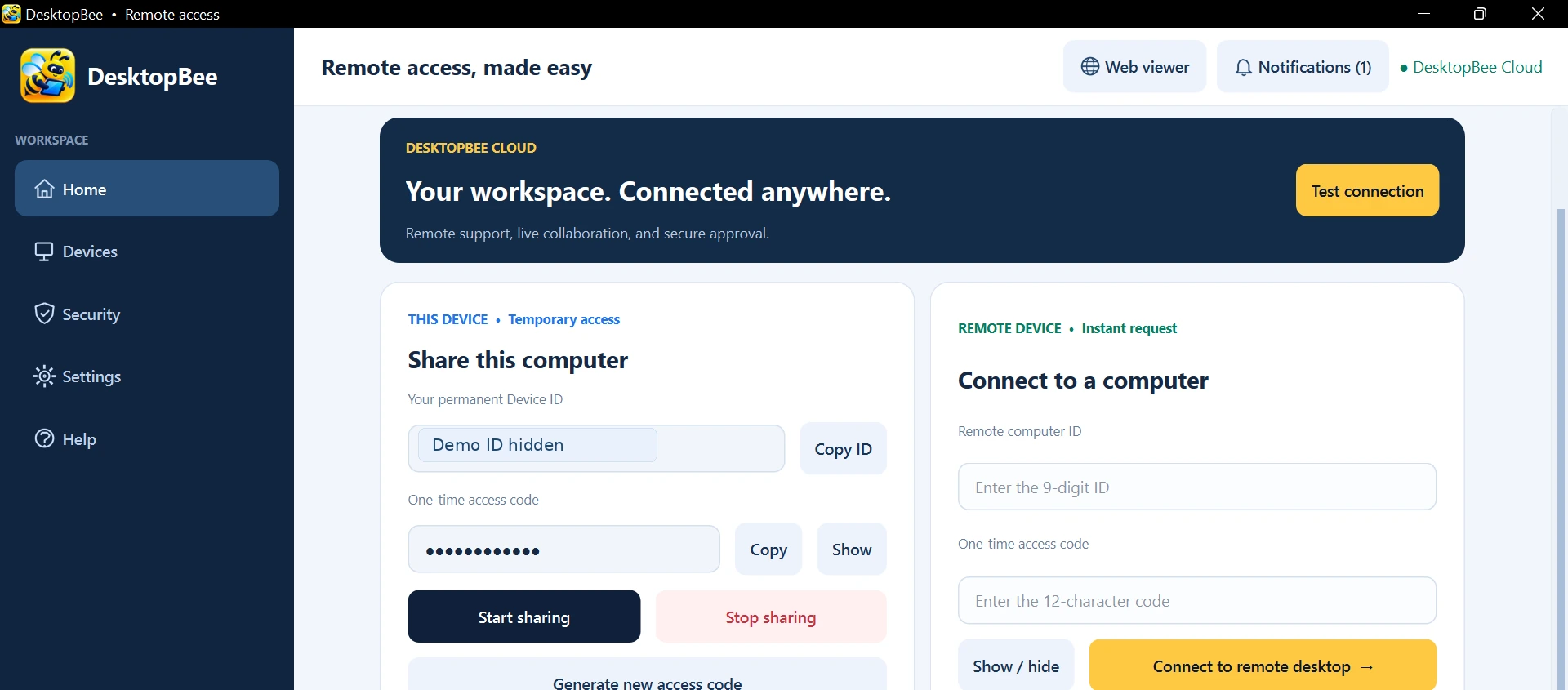
Consent-based accessEach session requires a code and approval
Convenient remote supportHelp people without a complicated VPN setup
Easy to get startedA Windows host and a supported browser
For everyday helpDesigned for personal use and remote assistance
DESKTOPBEE WEB VIEWER
DesktopBee offers a web-based remote desktop viewer, so you can connect to a supported Windows host from your browser without installing another Windows viewer. It's especially helpful for quick troubleshooting when you're away from your main PC.
Open the web viewerUse a compatible browser on your second device.
Enter the computer ID and codeGet the one-time access details from the Windows host.
Wait for permissionThe person at the host chooses View Only or Full Control.
Requires DesktopBee running on the Windows host and its explicit approval. No unattended access or relay end-to-end encryption in this preview.

CONNECT TO A WINDOWS COMPUTER
Enter the one-time details shared by the host to request a remote session.
WHY DESKTOPBEE?
Whether you are supporting a family member, working with a colleague, or checking another Windows PC, DesktopBee puts connection details and permission controls in one clear workspace. The Windows application can host a session, while the browser viewer provides a convenient way to connect.
Explore remote viewing and assistance using the free Windows preview. The host controls every connection.
Windows remote desktop →Guide someone through a problem using their computer ID, temporary code and explicit consent.
Remote support guide →Connect to a running Windows host from your browser without installing another Windows viewer.
Browser access →Choose View Only or Full Control, revoke input permissions, or end a remote session when finished.
Review security →BUILT FOR REAL CONNECTIONS
A focused set of features in the current Windows preview.
GET STARTED
Start with a Windows host, share temporary connection information, and decide what level of access to approve.
Check the Windows download center, install the published preview, and open DesktopBee on the computer you want to share.
Provide the nine-digit computer ID and current one-time access code to someone you authorize. They can connect from the browser viewer.
The Windows host approves or rejects the connection and chooses View Only or Full Control. End the session when you are done.
Your computer remains in your control. The current preview requires manual approval and does not offer unattended access or end-to-end encryption from the relay. Read our current security details.
REAL-WORLD USE CASES
Different problems, one familiar connection workflow. DesktopBee helps you share a screen or request remote assistance with permission.
Guide a colleague through software settings, an unfamiliar dialog, or a routine Windows problem. Request control only when the host agrees.
Remote support for Windows →When you have someone present to approve the connection, view and interact with another Windows PC from your device or a browser.
How to connect →Assist someone who needs help installing an app or understanding a Windows setting while they retain approval and disconnect controls.
Safe support checklist →Use View Only to demonstrate a task or review a screen together without allowing remote mouse or keyboard input.
Understand permissions →STRAIGHTFORWARD PLANS
DesktopBee Free is available as a preview. Pro is a roadmap plan, not a subscription you can purchase today.
For occasional connections, personal remote support, and authorized Windows screen sharing.
Planned for users who need additional devices, more organization and expanded support workflows.
COMMON QUESTIONS
Before connecting to any Windows computer, check how the session works and what permissions you are granting.
Read the remote desktop guides →DesktopBee's current Windows preview is free. The Free plan does not require payment details. The public installer appears in the download center after it passes release checks. Future Pro pricing is only a proposal.
Yes, if the Windows host application is running. Open the DesktopBee web viewer, enter the host's computer ID and current one-time code, and wait for approval at that computer. The viewing device does not require the Windows app.
The preview communicates through the DesktopBee relay, so a typical Windows host does not need inbound router ports configured. It still needs outbound internet access and a working Cloud connection. Corporate firewalls may need review.
Only with Full Control permission. The host can select View Only, which blocks remote keyboard and mouse input at the relay, and change or revoke control during a session.
No. The current preview requires a fresh temporary access code and explicit host approval. A previously recognized computer does not automatically receive permission to control the host.
Not yet. TLS protects the connection to DesktopBee Cloud, but the current relay is not protected with application-level end-to-end encryption. Do not use this preview for sensitive or regulated data. See the security page for the current status.
The desktop application is currently built for Windows 10 and 11. You can use a compatible browser as a remote viewer. Native macOS, Linux, Android and iOS apps remain future plans, not available downloads.
Check the Windows download center. It displays the version and SHA-256 checksum once a tested release is published. Until then, the page reports the installer as pending rather than linking to unverified software.
HELPFUL REMOTE ACCESS RESOURCES
Clear instructions and practical checklists help both the person requesting support and the person sharing their computer.
From opening the host application to entering the ID and requesting approval.
Read the guide →SAFETY CHECKLISTReview who is connecting, what they can do, and when to disconnect.
Read the checklist →NETWORK BASICSUnderstand how a cloud relay changes the connection setup.
Explore the explanation →READY TO GET STARTED?
Try the free remote desktop preview with host-approved access and a browser-based viewing option.
Windows download statusFree preview · Windows 10/11 · Verified installer publication pending